What is virtual desktop infrastructure? VDI explained
Virtual desktop infrastructure (VDI) is a desktop virtualization technology wherein a desktop operating system, typically Microsoft Windows, runs and is managed in a data center. The virtual desktop image is delivered over a network to an endpoint device, which allows the user to interact with the operating system and its applications as if they were running locally. The endpoint may be a traditional PC, thin client device or a mobile device.
The concept of presenting virtualized applications and desktops to users falls under the umbrella of end-user computing (EUC). The term VDI was originally coined by VMware and has since become a de facto technology acronym. While Windows-based VDI is the most common workload, Linux virtual desktops are also an option.
How the user accesses VDI depends on the organization's configuration, ranging from automatic presentation of the virtual desktop at logon to requiring the user to select the virtual desktop and then launching it. Once the user accesses the virtual desktop, it takes primary focus, and the look and feel are that of a local workstation. The user selects the appropriate applications and can perform their work.
Operating system
VDI may be based on a server or workstation operating system. Traditionally, the term VDI has most commonly referred to a virtualized workstation operating system allocated to a single user, but that definition is changing.
Each virtual desktop presented to users may be based on a 1:1 alignment or a 1:many ratio, which is often referenced as multi-user. For example, a single virtual desktop allocated to a single user is considered 1:1, but numerous virtual desktops shared under a single operating system is a hosted shared model, or 1:many.
A server operating system can service users as either 1:1 or 1:many. Where a server operating system is the platform for VDI, Microsoft Server Desktop Experience is enabled to more closely mimic a workstation operating system to users. Desktop Experience adds features such as Windows Media Player, Sound Recorder and Character Map, all of which are not natively included as part of the generic server operating system installation.
Until recently, a workstation operating system could only service users as 1:1. However, in 2019, Microsoft announced the availability of Windows Virtual Desktop (WVD), which enables multi-user functionality on Windows 10, which was previously only available on server operating systems. Thus, Windows 10 now has true workstation multi-user functionality. WVD is only available on Microsoft's own cloud infrastructure, Azure, and there are stringent licensing requirements that make it inappropriate for all but enterprise organizations.
Display protocols
Each endpoint device must install the respective client software or run an HTML5-based session that invokes the respective session protocol. Each vendor platform is based on a remote display protocol that carries session data between the client and computing resource:
- Citrix
- Independent Computing Architecture (ICA)
- Enlightened Data Transport (EDT)
- VMware
- Blast Extreme
- PC over IP (PCoIP)
- Microsoft
- Remote Desktop Protocol (RDP)
High-definition user experience (HDX) from Citrix is largely an umbrella marketing term that encompasses ICA, EDT and some additional capabilities. VMware user sessions can be based on Blast Extreme, PCoIP or RDP. Microsoft Remote Desktop can only use RDP.
The display protocol, or session protocol, controls the user display and multimedia capabilities, and the specific features and functionality of each protocol vary. PCoIP is licensed from Teradici, whereas Blast Extreme is VMware's in-house protocol. In addition, EDT and Blast Extreme are optimized for User Datagram Protocol (UDP).
The session protocols listed above minimize and compress the data that is transmitted to and from the user device to provide the best possible user experience. For example, if a user is working on a spreadsheet within a VDI session, the user transmits mouse movements and keystrokes to the virtual server or workstation, and bitmaps are transmitted back to the user device. The data itself does not populate the user display, but instead shows bitmaps representing the data. When a user enters additional data in a cell, only updated bitmaps are transmitted.
Requirements
VDI requires several distinct technologies working in unison to successfully present a virtual desktop to a user. First and foremost, IT must present a computing resource to the user. Although this computing resource can technically be a physical desktop, virtual machines are a more common choice.
For on-premises deployments, a hypervisor hosts the virtual machines that will deploy as VDI. Citrix Virtual Apps and Desktops and Microsoft RDS may be hosted on any hypervisor, whereas VMware Horizon has been engineered to run on its ESXi hypervisor. When organizations must use virtual graphics processing units (vGPUs) to support highly graphical applications such as radiographic imaging or computer-aided design (CAD), it's common to use Citrix Hypervisor (formerly XenServer) or VMware ESXi.
A mechanism for mastering and distributing VDI images is necessary, and there is significant complexity involved with these processes. Depending on enterprise requirements, IT may employ one gold image for all VDI workloads or numerous gold images. Minimizing the number of images decreases administrative effort, as each image adds exponential overhead. IT must open gold images, revise them with Windows updates, base applications, antivirus and other changes, and then subsequently re-enable them.
Storage resources can be significant and may represent the single most expensive aspect of VDI, especially when each virtual machine is allotted significant disk size. IT may elect thin provisioning, causing the virtual machine to use the minimum amount of disk space and then expand as necessary. However, close monitoring of actual storage requirements is necessary to ensure that storage expansion does not exceed actual space. To combat this possibility, organizations may choose thick provisioning, which causes the maximum amount of space to be fully allocated.
IT often uses layering technologies in conjunction with VDI images. By providing a non-persistent virtual desktop to users and adding layers for applications and functionality, IT can customize a virtual desktop with minimal management. For example, IT may append an application layer suitable for a marketing department for those users, whereas an engineering department would require a distinct application layer with CAD or other design applications.
VDI requires enterprise data to traverse the network, so IT must secure user communications via SSL/TLS 1.2. For example, Citrix strongly recommends using its Gateway product (formerly NetScaler) to ensure that all traffic traverses the network securely.
Converged infrastructure and hyper-converged infrastructure (HCI) products address the scalability and cost challenges associated with virtual desktop infrastructure. These products bundle storage, servers, networking and virtualization software -- often specifically for VDI deployments. Both Nutanix and VMware lead the market share for HCI and can serve as the platform for Microsoft RDS, VMware Horizon and Citrix Virtual Apps and Desktops.
Persistent vs. non-persistent deployments
VDI administrators may deploy non-persistent or persistent desktops. Persistent virtual desktops have a 1:1 ratio, meaning that each user has their own desktop image. Non-persistent desktops have a many:1 ratio, which means that many end users share one desktop image. The primary difference between the two types of virtual desktops lies in the ability to save changes and permanently install apps to the desktop.
Persistent VDI
With persistent VDI, the user receives a permanently reserved VDI resource at each logon, so each user's virtual desktop can have personal settings such as stored passwords, shortcuts and screensavers. End users can also save files to the desktop.
Persistent desktops have the following benefits:
- Customization. Because an image is allocated to each separate desktop, with persistent VDI end users can customize their virtual desktop.
- Usability. Most end users expect to be able to save personalized data, shortcuts and files. This is especially important for knowledge workers because they must frequently work with saved files. Persistent VDI offers a level of familiarity that non-persistent VDI does not.
- Simple desktop management. IT admins manage persistent desktops in the same way as physical desktops. Therefore, IT admins don't need to re-engineer desktops when they transition to a VDI model.
However, persistent VDI also comes with drawbacks:
- Challenging image management. The 1:1 ratio of persistent desktops means that there are a lot of individual images and profiles for IT to manage, which can become unwieldy.
- Higher storage requirements. Persistent VDI requires more storage than non-persistent VDI, which can increase the overall costs.
Non-persistent VDI
Non-persistent VDI spins up a fresh VDI image upon each login. It offers a variety of benefits, including:
- Easy management. IT has a minimal number of master images to maintain and secure, which is much simpler than managing a complete virtual desktop for each user.
- Less storage. With non-persistent VDI, the OS is separate from the user data, which reduces storage costs.
The most commonly cited drawback for non-persistent VDI is limited personalization and flexibility. Customization is more limited for non-persistent VDI, but IT can layer a mechanism to append the user profile, applications and other data at launch. Thus, non-persistent VDI presents a user with a base image with unique customizations.
VDI use cases
VDI is a powerful business technology for well-aligned use cases. To decide whether VDI is good fit, organizations should carefully assess their users from the perspective of what they do and where they work.
Generally, local and remote users (who perform work on desktops from a centrally located site) could benefit from VDI. Mobile users (who work from a variety of different locations) are not always a good fit for VDI; organizations should evaluate these situations on a case-by-case basis. The same goes for roaming users, or users who split their time between local or remote sites.
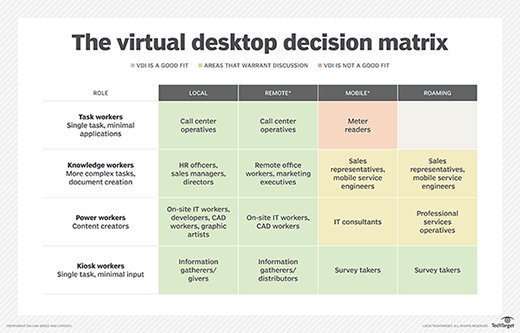
Organizations must also evaluate how their users complete their work, such as the applications, resources and files they use. Generally, employees fall into four categories:
- Task workers. These users are usually able to do their jobs with a small set of applications and can benefit from VDI. Examples include warehouse workers or call center agents.
- Knowledge workers. These employees require more resources than task workers and are well suited for VDI. Example include analysts or accountants.
- Power users. These are perhaps the best type of worker for VDI; they may hold IT administrative rights or work with CAD applications that require a lot of computing resources. For example, developers may use VDI workstations to test end-user functionality.
- Kiosk users. These users work with a shared resource, such as a computer library. They would also benefit from VDI.
There are other use cases that work well with VDI:
- BYOD. Bring your own device (BYOD) programs mesh well with VDI. Where users are bringing their own endpoint devices into the workplace, fully functioning virtual desktops eliminate the need to integrate apps within the user's personal physical device. Instead, users can quickly access a virtual desktop and enterprise applications without additional configuration. VDI also offloads much of the device-level management that often accompanies a traditional BYOD environment.
- Highly secure environments. Industries that must prioritize a high level of security, such as finance or military, are well suited for VDI. VDI enables IT to have a granular level of control over user desktops and prevent unauthorized software from entering the desktop environment. Alternatively, these organizations can also consider application virtualization for apps that need high levels of security. This process installs virtualized applications in a data center, keeping them separated from the underlying OS and other applications.
- Highly regulated industries. Organizations that are required to comply with regulatory standards, such as legal or healthcare companies, would benefit from VDI because of the ability to centralize data in a secure cloud or data center. That eliminates the possibility of employees storing private data on a personal server.
Benefits of VDI
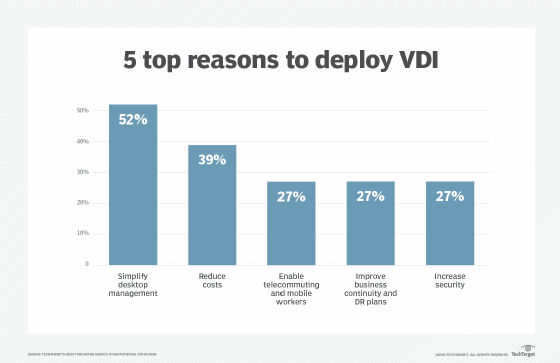
VDI as a platform has many benefits, including:
- Device flexibility. Because little actual computing takes place at the endpoint, IT departments may be able to extend the life span of otherwise obsolete PCs by repurposing them as VDI endpoints. And when the time does come to purchase new devices, organizations can buy less powerful -- and less expensive -- end-user computing devices, including thin clients.
- Increased security. Because all data lives in the data center, not on the endpoint, VDI provides significant security benefits. A thief who steals a laptop from a VDI user can't take any data from the endpoint device because no data is stored on it.
- User experience. VDI provides a centralized, standardized desktop, and users grow accustomed to a consistent workspace. Whether that user is accessing VDI from a home computer, thin client, kiosk, roving workstation or mobile device, the user interface is the same, with no need to acclimate for any physical platform.
The VDI user experience is equal to or better than the physical workstation due to the centralized system resources assigned to the virtual desktop, as well as the desktop image's close proximity to back-end databases, storage repositories and other resources. Further, remote display protocols compress and optimize network traffic considerably, which enables screen paints, keyboard and mouse data, and other interactions to simulate the responsiveness of a local desktop.
- Scalability. When an organization expands temporarily, such as seasonal call center agent contractors, it can quickly expand the VDI environment. By enabling these workers to access an enterprise virtual desktop workload and its respective apps, these contractors can be fully functional within minutes, compared with days or weeks to procure endpoint devices and configure apps.
- Mobility. Other benefits of VDI include the ability to more easily support remote and mobile workers. Mobile workers comprise a significant percentage of the workforce, and remote workers are becoming more common. Whether these individuals are field engineers, sales representatives, onsite project teams or executives, they all need remote access to their apps while traveling. By presenting a virtual desktop to these remote users, they cab work as efficiently as if they were in the office.
Drawbacks of VDI
When VDI first came to prominence about 10 years ago, some organizations implemented VDI without a justified business case. As a result, many projects failed because of the unexpected back-end technical complexities, as well as a workforce that wasn't fully accepting of VDI as an end-user computing model. It's also important to test a VDI deployment to ensure that the organization's infrastructure and resources can achieve acceptable user experience levels on virtual desktops.
Here are some potential drawbacks of implementing VDI:
Potentially poor user experience. Without sufficient training, providing the user with access to two desktops (i.e., the local desktop and the virtualized desktop) may be confusing and result in a poor user experience. For example, if users attempt to save a file from the virtual desktop, they may search for it in the incorrect location. This may result in additional support requests to find missing files that were simply archived on the incorrect desktop.
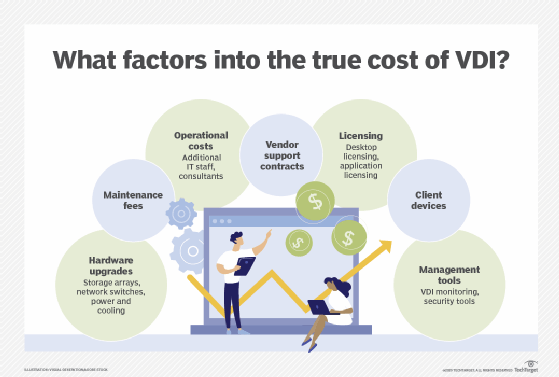
Additional costs. Organizations should review financials associated with VDI in depth. While there are monetary savings associated with extending the life of endpoint hardware, the additional costs for IT infrastructure expenses, personnel, licensing and other items may be higher than expected.
Although storage costs have been declining, they can nonetheless cause VDI to become cost prohibitive. When a desktop runs locally, the operating system, applications, data and settings are all stored on the endpoint. There is no extra storage cost; it's included in the price of the PC. With VDI, however, storage of the operating system, applications, data and settings for every single user must be housed in the data center. Workload capacity needs, and the cost required to meet them, can quickly balloon out of control.
Complex infrastructure. VDI requires several components working together flawlessly to provide users with virtual desktops. If any of the back-end components encounter issues, such as a desktop broker or licensing server automatically rebooting or a VM deployment system running out of storage space, then users cannot make virtual desktop connections. While the VDI vendor's monitoring features offer some details regarding system issues and related forensics, large environments in particular likely need a third-party monitoring tool to ensure maximum uptime, which further adds to costs.
Additional IT staff. Maintaining staff to support a VDI environment can be difficult. In addition to recruiting and maintaining qualified IT professionals, ongoing training and turnover are very real challenges that organizations face. Furthermore, when organizations undertake new projects, they may need to hire external consultants to provide architectural guidance and initial implementation assistance.
Licensing issues. Software licensing is an important consideration. In addition to the initial procurement for VDI licensing, ongoing maintenance and support agreements affect the bottom line. Moreover, Microsoft Windows workstation and/or server licensing is required and may represent an additional cost. VDI can complicate vendor software licensing and support because some licensing and support agreements do not allow for software to be shared among multiple devices and/or users.
Reliance on internet connectivity. No network, no VDI session. VDI's reliance on network connectivity presents another challenge. Although internet connectivity is quickly improving throughout the world, many locations still have little or no internet access. Users can't access their virtual desktops without a network connection, and weak connectivity can cause a poor user experience.
VDI technologies from Citrix, Microsoft, VMware and others address business and technical requirements that enable users to access consistent virtual desktops remotely. Business needs and user experience should be weighed against resource requirements, costs and technical complexities to ensure that VDI is the right platform for a given enterprise.
VDI vs. RDS
Remote Desktop Services (RDS) and VDI are both ways to deliver remote desktops to users. Like VDI, RDS enables users to access desktops by connecting to a VM or server that is hosted in a local data center or in the cloud. The desktop environment, applications and data all live on that VM or server. There are differences between RDS and VDI, however.
RDS was originally called Terminal Services, which was a feature from Windows' legacy operating system, Windows NT. Citrix wrote and licensed the code for Terminal Services. RDS is limited to Windows Server, which means that users can only access Windows desktops. However, VDI is not limited to a single operating system or application architecture.
To enable RDS for a user, IT must run a single Windows Server instance on hardware or a virtual server. That one server simultaneously runs every user's instance. With VDI, each user is linked to its own VM that also must have its own license for the OS and applications.
For users to access that instance, they must connect to a network and their client devices must support Remote Desktop Protocol, a Microsoft protocol that supplies a user with a graphical interface. Using that interface, a user can connect to another computer over a network connection.
For the most part, all RDS users are presented with the same OS and applications. Windows Server 2016 and later versions allowed for personal session desktops to have some persistency, however.
RDS supports many users. Because each license is linked to a user via Microsoft's Client Access License, RDS licensing and administration can be simpler than VDI. RDS works well for organizations that need to support standard desktop applications such as Microsoft 365 or email.
VDI, however, is a better fit under the following circumstances:
- Compliance and security. With RDS, all users share one server, which introduces some potential security risks.
- Business continuity. With RDS, a single network outage can affect every user. VDI is often more resilient because virtual servers can fail over.
- Custom or intensive applications. VDI is a better option for intensive applications such as computer-aided design or video editing programs. It is also better for custom applications, because it enables higher levels of personalization than RDS does.
VDI vs. DaaS
There are two principal mechanisms for delivering a virtual desktop to a user: virtual desktop infrastructure and desktop as a service (DaaS). The difference between these two mechanisms is simply a matter of who owns the infrastructure.
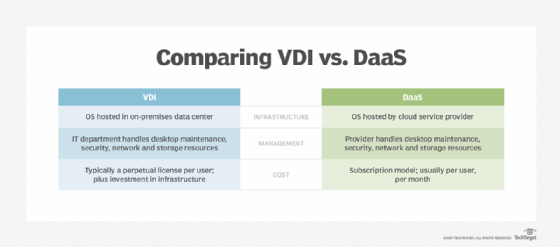
With VDI, the business locally creates and manages the underlying virtualization and resulting virtual desktops. This means the business itself owns and operates the VDI servers, takes charge of creating and maintaining all the virtual desktop images, and so on. By deploying VDI, a business exercises complete control over the virtual desktop environment. This can be a preferred alternative for any business that is subject to stringent compliance regulations or must provide a strong security posture. However, the additional costs of buying, installing and maintaining VDI servers and software may be prohibitive for some small businesses.
With DaaS, a third-party provider creates and manages the virtualization environment and virtual desktops. Most commonly, this includes not only the virtual desktop, but also apps and support. The outside provider owns and operates the VDI servers and controls the creation and provisioning of virtual desktop images. In effect, the business simply "rents" virtual desktops from the provider who provisions the requested instances and makes them available to users.
DaaS is often thought of as "VDI in the cloud" and is usually presented as a cloud service. This can be a preferred alternative for any business with limited IT capabilities where deploying VDI is undesirable, or when the business is better suited to handling the monthly recurring bill for virtual desktops.
IT can more easily scale up and down desktops with DaaS by adding or removing licenses rather than making changes to the infrastructure itself. This can be beneficial for companies that are growing rapidly or experience usage spikes during certain times of the year, such as Black Friday. DaaS may also better support organizations with GPU-powered applications by providing a more attainable way to access expensive hardware.
DaaS does have drawbacks, however. While vendors tout support for simple or common apps such as Microsoft Office, the reality is that business application integration -- including databases, file servers and other resources -- is extremely complex. As such, the implementation of true and useful DaaS products is often a lengthy, complex process.
Organizations that transition from on-premises VDI to DaaS could choose between a few different methods. Organizations could use the "lift and shift" method for VDI workloads, which includes moving applications without redesigning them or changing workflow. A more comprehensive method includes rethinking strategies, as well as reviewing cloud offerings, which results in a more comprehensive and updated technology offering.
History of VDI
In the early 2000s, VMware customers began hosting virtualized desktop processes with VMware and ESX servers, using Microsoft Remote Desktop Protocol in lieu of a connection broker. During VMware's second annual VMworld conference in 2005 the company demonstrated a prototype of a connection broker.
VMware introduced the term 'VDI' in 2006, when the company created the VDI Alliance program and VMware, Citrix and Microsoft subsequently developed VDI products for sale. Virtual desktops were a somewhat hidden but optional capability of Citrix Presentation Server 4.0 and XenDesktop was later released as a standalone product.
VMware released its VDI product under the name Virtual Desktop Manager, which later was renamed View, then Horizon. Citrix's products, XenDesktop and XenApp, were later rebranded to Citrix Virtual Apps and Desktops.
Licensing was a significant hurdle for early VDI deployments, mainly due to Microsoft's Virtual Desktop Access (VDA) requirement. Organizations with Windows virtual desktops that were hosted on servers needed to pay $100 per device per year for VDA licensing. Microsoft Software Assurance (SA) licensing included VDA, but only for Windows devices. This meant that companies with tablets, PCs and smartphones that weren't manufactured by Microsoft were required to pay significant licensing fees.
Many organizations found a workaround by using Windows Server as the VDI's underlying OS. This prevented organizations from paying exorbitant licensing fees because the Windows Server license was a one-time fee; the VDA license was an annual cost, plus the cost of the Windows Server license.
In 2014, Microsoft allowed Windows licenses to be assigned per user rather than per device, which alleviated the costly problem of VDA licensing.
DaaS, a desktop virtualization model in which a third-party cloud provider delivers virtual desktops via a subscription service, began to gain traction in the mid-2010s. Amazon released one of the first DaaS products in 2014, offering single-user Windows Server 2012 as the OS. Other vendors, including Citrix, VMware and Workspot followed suit with their own DaaS products.
In 2019, Microsoft brought more changes to the VDI industry when it released Windows Virtual Desktop, a DaaS offering that runs on the Azure cloud and provides a multiuser version of Windows 10. Organizations must pay for Azure subscription costs, but the DaaS offering is included with a Windows 10 Enterprise license.
Looking to break into the VDI field? Read our feature about becoming a VDI engineer.
What's next for VDI?
The VDI market is growing exponentially due to a variety of factors, including increased adoption of BYOD programs and a greater need for a mobilized workforce. Cloud-based VDI, or DaaS, is in particularly high demand. In 2016, the cloud-based VDI market was worth $3.6 million and it is estimated to reach over $10 million by 2023, according to Allied Market Research.
The COVID-19 pandemic generated further interest in DaaS due to the suddenly heightened need for users to be able to work anywhere. During the COVID-19 pandemic, for example, DaaS allowed many organizations to more easily transition to a work-from-home environment due to the desktop virtualization model's scalability and ease of deployment.
Many organizations are embarking on their journey to the cloud, and incorporating VDI requirements is an important aspect of architecting the next-generation infrastructure. Many experts believe that DaaS will be a popular deployment method in the future because it is a subscription-based SaaS model, a model that many software providers have moved to.
The cloud subscription model makes sense from a vendor perspective, as well. Subscriptions generate a consistent, recurring revenue stream rather than one-time sales transactions that create irregular bumps in revenue. Vendors can more easily market consumption-based services because there are attractive benefits, such as lower maintenance fees and upfront costs.
Products and vendors
There are three key players in the VDI market: Citrix, Microsoft and VMware. Of these, Citrix Virtual Apps and Desktops holds the largest market share, followed by VMware Horizon and subsequently Microsoft Remote Desktop Services (RDS).
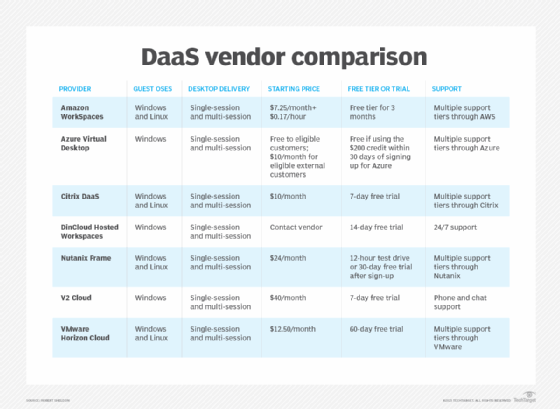
Citrix and Microsoft first came to market with virtualized apps and shared desktops based on server-based computing. They subsequently offered VDI workloads based on workstation operating systems, whereas VMware initially launched VDI and then later offered virtualized apps.
The VDI market also includes other vendors that can often be more affordable than the major, tried-and-true vendors. These options include flexVDI, NComputing and Leostream.
Many on-premises VDI vendors also have a DaaS offering. For example, Citrix offers Citrix Managed Desktops, VMware offers Horizon DaaS and Microsoft released Azure-based Windows Virtual Desktop in 2019. Amazon also has a DaaS offering, Amazon WorkSpaces.
Other DaaS vendors include Evolve IP, Cloudalize, Workspot, dinCloud and Dizzion.