
Getty Images
VMware Workstation 16 Pro requirements and installation
VMware Workstation can help consolidate hardware and run multiple OSes on a single VM, but your system must meet a few requirements prior to installation.
You're probably familiar with VMware Workstation; for some, it's been their personal hypervisor since its conception in 1999. Still, you might find the product intimidating after purchase, so make sure to fully understand VMware Workstation 16 Pro hardware and OS requirements, costs and the installation process.
Hypervisors are essential in the data center because they enable VMs to run multiple OSes on consolidated hardware instead of having to buy dozens of servers. Hypervisors combine workloads on a fraction of the required hardware.
But hypervisor technology isn't always readily available for your personal workloads, such as home labs, as it is in corporate data centers. In this case, Workstation 16 Pro offers an alternative hypervisor service on a Windows or Linux computer.
Workstation 16 Pro benefits and use cases
With a workstation, you can run multiple VMs on your PC or laptop. These VMs can run many OSes, including vSphere. Running these OSes in VMs at the same time opens up several opportunities. When software only supports Linux but your computer runs Windows, then a VM can run the Linux-based application on your Windows computer.
VMs are a better alternative to solving the problem with a dual boot configuration, which enables OSes to run on the same hardware -- but not simultaneously.
Other use cases for Workstation 16 Pro are to build test and demo environments with one or more OSes on a single physical VM. Workstation is also helpful if you require several VMs to build and test code because not more than one computer is needed.
Workstation 16 Pro installation requirements
Workstation 16 Pro can run on Intel- and Advanced Micro Devices-based PCs and laptops that contain processors launched as far back as 2011. Still, some processors aren't supported. You can find examples of supported and unsupported processors at VMware's documentation page.
Workstation CPU and RAM requirements depend on the number of VMs you plan to run and their size, though RAM is the most important resource to size properly.
You can run a small Windows or Linux VM within a VM that contains 2 CPU cores and 4 GB of RAM in Workstation. But it's also possible to run a vSphere VM with 8 GB of RAM and 4 CPUs on a physical host with 4 cores and 16 GB of RAM. The more VMs and the larger their size, the more resources are needed to run those VMs.
Pricing and upgrading information
Prior to a Workstation 16 Pro installation, you should know that VMware offers a similar product for macOS known as Fusion -- currently available in version 12.
For Windows, Linux and macOS, VMware also offers VMware Workstation Player. VMware Workstation Player is a lighter version of Workstation with limited capabilities to run many VMs, such as virtual network configuration.
You can use both Workstation 16 and Fusion 12 licenses interchangeably. When you install Workstation on Windows or Fusion on macOS, you must enter a license key -- without it, both programs work as an evaluation edition for 30 days.
If you purchase either product, the same key works for either Workstation or Fusion. This means a Workstation license can unlock a Fusion installation and vice versa. These licenses also allow for usage on three personal devices.
VMware Workstation Player remains available free of charge for personal use, though there is a commercial version available at $149 for new licenses and $79 for upgrades.
The full Workstation and Fusion products come at a price of $199 for new purchases and $99 for upgrades from a previous version.
How to install Workstation 16 Pro
Workstation 16 Pro installs similarly to any other Windows or Linux application; the product will run in minutes once you download and run the Workstation installer. Every feature, including networking, runs out of the box. Virtual networking might require configuration.
For many use cases, the default settings within Workstation's Virtual Network Editor are usable. In Figure 1, there are three network types available.
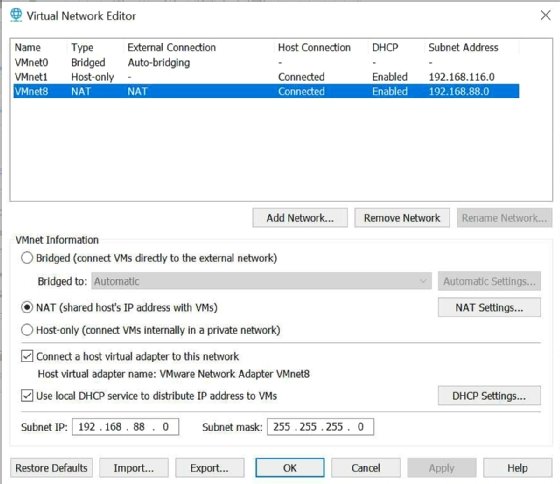
Bridged networking. Any VM you run becomes part of your physical network, which requires an IP address for each VM used on that network.
Network Address Translation networking. VMs share your computer's network address.
Host-only networking. This is for VMs that don't require a connection to the physical network.
If your setup requires multiple networks or specific IP address ranges, Virtual Network Editor enables you to configure these network types. You can access Virtual Network Editor through the Edit menu and as a separate icon in the VMware Start Menu folder.
Workstation 16 Pro offers a New Virtual Machine Wizard available from Workstation's homepage to create new VMs. In Figure 2, the New Virtual Machine Wizard offers two ways to create a VM: Typical and Custom.
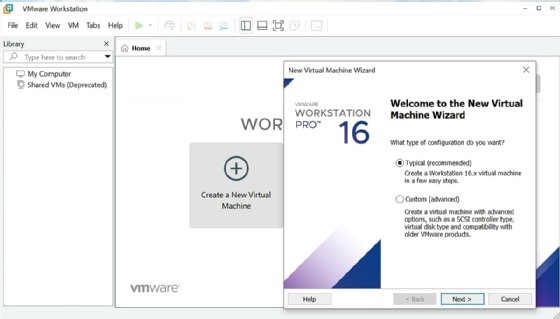
When you install mainstream OSes that contain an ISO file, such as Microsoft Windows, Linux and VMware ESXi, the straightforward way to spin up a VM is to select the Typical configuration option. Then, select the desired ISO file from the wizard interface, and let Workstation do the rest.
For less mainstream OSes, the Custom method enables you to choose OSes from a list. In Figure 3, you can see the list of supported OSes.
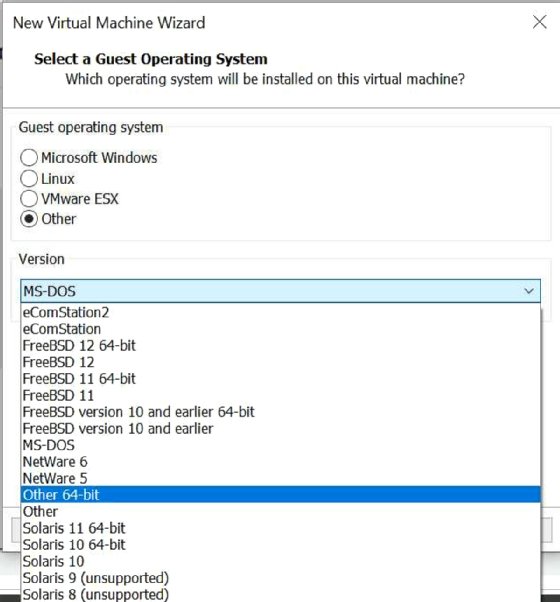
If the OS you require isn't listed, select either the Other or Other 64-bit option. This creates a VM where you can test whether your OS is compatible with Workstation -- even if it isn't supported.
Workstation 16 Pro also supports containerized workloads with Kubernetes. This isn't accomplished through the GUI used to create new VMs, but with a new command-line utility, vctl, introduced with the VMware Nautilus project.