ESXi console tech support mode: When the vSphere Client isn’t enough
The ESXi console and its tech support mode can solve many issues that the vSphere Client can’t. Once enabled, you have the power of the Linux command line at your disposal.

In cases where the VMware vSphere Client won’t get the job done, the host’s ESXi console and its tech support mode just might do the trick.
The ESXi console lets administrators perform management tasks that are not available from the vSphere Client, such as changing the host network configuration, changing boot parameters and checking available disk space in specific directories.
Some of these tasks require tech support mode to be enabled. Tech support mode provides access to a Linux command-line interface that allows you to perform advanced VMware troubleshooting tasks that aren’t possible with the vSphere Client. Tech support mode is handy when your host loses connectivity to the vSphere Client or you need hardware-specific information, for example.
Enabling tech support mode in the ESXi console
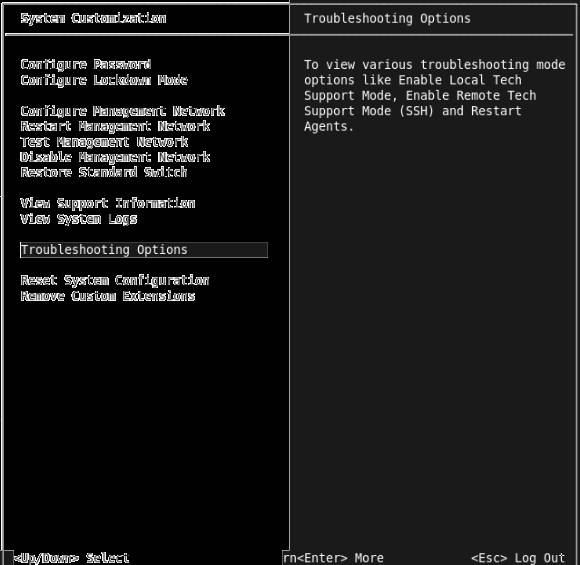
To launch the ESXi console, press F2 on the host’s keyboard. If your data center is far away or you don’t have physical access to the host, enable remote shell access through the ESXi console’s troubleshooting options.
To enable remote shell access, choose Troubleshooting Options from the list in the ESXi console’s menu. Next, select Enable Local Tech Support and Enable Remote Tech Support, which grants you access to ESXi’s Linux command line.
From the command line, you can run specialized commands that are only offered in tech support mode, such as vdf, which shows the ESXi host’s available disk space, and vdu, which shows how much disk space is occupied by a specific directory.
After local tech support mode is enabled on the host, you can press Alt + F1 to access the command line from now on. At that point, you can login with the administrative credentials that you normally use to connect to the ESXi host.
Alternatively, after enabling remote tech support, you can use Secure Shell (SSH) or an SSH client (e.g., PuTTY) to remotely connect to the ESXi console. Again, you'll need to enter your username and password to access the server.
After logging in remotely, you’ll see just a Linux command line. If you need access to the ESXi console menu, enter the /sbin/dcui command, which will show the black-and-yellow ESXi console menu.
Figure 1
You can access the VMware configuration menu remotely over SSH. (Click image for an enlarged view.)
Advanced troubleshooting option from the command line
The tech support mode command line allows for advanced troubleshooting through the use of Linux- and VMware-specific commands.
For a complete list, log in as the root user. Then type vm and the tab button twice. Normally, pressing tab twice automatically completes commands on a Linux console. But there are many commands that start with vm, so you'll see a list of all of them. From there, you can choose the one you want.
Figure 2
The list of VMware commands for the ESXi console. (Click image for an enlarged view.)
There are some commands that you’ll use more than others. The vm-support command, for example, deploys a script that analyzes the critical parameters on your host and places that information in a file, which you can send to VMware support for help.
The vim-cmd is also very versatile. It can perform virtually every task that the vSphere Client can do. It’s not something you'd want to use for your daily work, because the command line is more complicated than a graphical user interface, and that can lead to errors. But it might help you restore a disabled ESXi host that you can’t access with the vSphere Client.
Another very useful command is vmkvsitools, which provides hardware-related information, such as a list of PCI devices connected to a server, open files and hardware clock settings. This data can also help you solve system problems.
In the next part of this series, you'll learn more about how to use these Linux and VMware commands in the tech support mode prompt.