virtualization
What is virtualization?
Virtualization is the creation of a virtual -- rather than actual -- version of something, such as an operating system (OS), a server, a storage device or network resources.
Virtualization uses software that simulates hardware functionality to create a virtual system. This practice allows IT organizations to operate multiple operating systems, more than one virtual system and various applications on a single server. The benefits of virtualization include greater efficiencies and economies of scale.
OS virtualization is the use of software to allow a piece of hardware to run multiple operating system images at the same time. The technology got its start on mainframes decades ago, allowing administrators to avoid wasting expensive processing power.
How virtualization works
Virtualization describes a technology in which an application, guest OS or data storage is abstracted away from the true underlying hardware or software.
A key use of virtualization technology is server virtualization, which uses a software layer -- called a hypervisor</a -- to emulate the underlying hardware. This often includes the CPU's memory, input/output (I/O) and network traffic.
Hypervisors take the physical resources and separate them so they can be utilized by the virtual environment. They can sit on top of an OS or they can be directly installed onto the hardware. The latter is how most enterprises virtualize their systems.
The Xen hypervisor is an open source software program that is responsible for managing the low-level interactions that occur between virtual machines (VMs) and the physical hardware. In other words, the Xen hypervisor enables the simultaneous creation, execution and management of various virtual machines in one physical environment.
With the help of the hypervisor, the guest OS, normally interacting with true hardware, is now doing so with a software emulation of that hardware; often, the guest OS has no idea it's on virtualized hardware.
While the performance of this virtual system is not equal to the performance of the operating system running on true hardware, the concept of virtualization works because most guest operating systems and applications don't need the full use of the underlying hardware.
This allows for greater flexibility, control and isolation by removing the dependency on a given hardware platform. While initially meant for server virtualization, the concept of virtualization has spread to applications, networks, data and desktops.
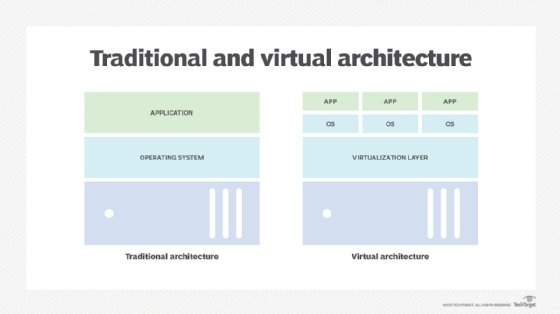
The virtualization process follows the steps listed below:
- Hypervisors detach the physical resources from their physical environments.
- Resources are taken and divided, as needed, from the physical environment to the various virtual environments.
- System users work with and perform computations within the virtual environment.
- Once the virtual environment is running, a user or program can send an instruction that requires extra resources form the physical environment. In response, the hypervisor relays the message to the physical system and stores the changes. This process will happen at an almost native speed.
The virtual environment is often referred to as a guest machine or virtual machine. The VM acts like a single data file that can be transferred from one computer to another and opened in both; it is expected to perform the same way on every computer.
Types of virtualization
You probably know a little about virtualization if you have ever divided your hard drive into different partitions. A partition is the logical division of a hard disk drive to create, in effect, two separate hard drives.
There are six areas of IT where virtualization is making headway:
- Network virtualization is a method of combining the available resources in a network by splitting up the available bandwidth into channels, each of which is independent from the others and can be assigned -- or reassigned -- to a particular server or device in real time. The idea is that virtualization disguises the true complexity of the network by separating it into manageable parts, much like your partitioned hard drive makes it easier to manage your files.
- Storage virtualization is the pooling of physical storage from multiple network storage devices into what appears to be a single storage device that is managed from a central console. Storage virtualization is commonly used in storage area networks.
- Server virtualization is the masking of server resources -- including the number and identity of individual physical servers, processors and operating systems -- from server users. The intention is to spare the user from having to understand and manage complicated details of server resources while increasing resource sharing and utilization and maintaining the capacity to expand later.
The layer of software that enables this abstraction is often referred to as the hypervisor. The most common hypervisor -- Type 1 -- is designed to sit directly on bare metal and provide the ability to virtualize the hardware platform for use by the virtual machines. KVM virtualization is a Linux kernel-based virtualization hypervisor that provides Type 1 virtualization benefits like other hypervisors. KVM is licensed under open source. A Type 2 hypervisor requires a host operating system and is more often used for testing and labs.
- Data virtualization is abstracting the traditional technical details of data and data management, such as location, performance or format, in favor of broader access and more resiliency tied to business needs.
- Desktop virtualization is virtualizing a workstation load rather than a server. This allows the user to access the desktop remotely, typically using a thin client at the desk. Since the workstation is essentially running in a data center server, access to it can be both more secure and portable. The operating system license does still need to be accounted for as well as the infrastructure.
- Application virtualization is abstracting the application layer away from the operating system. This way, the application can run in an encapsulated form without being depended upon on by the operating system underneath. This can allow a Windows application to run on Linux and vice versa, in addition to adding a level of isolation.
Virtualization can be viewed as part of an overall trend in enterprise IT that includes Autonomic Computing, a scenario in which the IT environment will be able to manage itself based on perceived activity, and utility computing, in which computer processing power is seen as a utility that clients can pay for only as needed. The usual goal of virtualization is to centralize administrative tasks while improving scalability and workloads.
Advantages of virtualization
The advantages of utilizing a virtualized environment include the following:
- Lower costs. Virtualization reduces the amount of hardware servers necessary within a company and data center. This lowers the overall cost of buying and maintaining large amounts of hardware.
- Easier disaster recovery. Disaster recovery is very simple in a virtualized environment. Regular snapshots provide up-to-date data, allowing virtual machines to be feasibly backed up and recovered. Even in an emergency, a virtual machine can be migrated to a new location within minutes.
- Easier testing. Testing is less complicated in a virtual environment. Even if a large mistake is made, the test does not need to stop and go back to the beginning. It can simply return to the previous snapshot and proceed with the test.
- Quicker backups. Backups can be taken of both the virtual server and the virtual machine. Automatic snapshots are taken throughout the day to guarantee that all data is up-to-date. Furthermore, the virtual machines can be easily migrated between each other and efficiently redeployed.
- Improved productivity. Fewer physical resources result in less time spent managing and maintaining the servers. Tasks that can take days or weeks in a physical environment can be done in minutes. This allows staff members to spend the majority of their time on more productive tasks, such as raising revenue and fostering business initiatives.
Benefits of virtualization
Virtualization provides companies with the benefit of maximizing their output. Additional benefit for both businesses and data centers include the following:
- Single-minded servers. Virtualization provides a cost-effective way to separate email, database and web servers, creating a more comprehensive and dependable system.
- Expedited deployment and redeployment. When a physical server crashes, the backup server may not always be ready or up to date. There also may not be an image or clone of the server available. If this is the case, then the redeployment process can be time-consuming and tedious. However, if the data center is virtualized, then the process is quick and fairly simple. Virtual backup tools can expedite the process to minutes.
- Reduced heat and improved energy savings. Companies that use a lot of hardware servers risk overheating their physical resources. The best way to prevent this from happening is to decrease the number of servers used for data management, and the best way to do this is through virtualization.
- Better for the environment. Companies and data centers that utilize copious amounts of hardware leave a large carbon footprint; they must take responsibility for the pollution they are generating. Virtualization can help reduce these effects by significantly decreasing the necessary amounts of cooling and power, thus helping clean the air and the atmosphere. As a result, companies and data centers that virtualize will improve their reputation while also enhancing the quality of their relationship with customers and the planet.
- Easier migration to the cloud. Virtualization brings companies closer to experiencing a completely cloud-based environment. Virtual machines may even be deployed from the data center in order to build a cloud-based infrastructure. The ability to embrace a cloud-based mindset with virtualization makes migrating to the cloud even easier.
- Lack of vendor dependency. Virtual machines are agnostic in hardware configuration. As a result, virtualizing hardware and software means that a company does not need to depend on a vendor for these physical resources.
Limitations of virtualization
Before converting to a virtualized environment, it is important to consider the various upfront costs. The necessary investment in virtualization software, as well as hardware that might be required to make the virtualization possible, can be costly. If the existing infrastructure is more than five years old, an initial renewal budget will have to be considered.
Fortunately, many businesses have the capacity to accommodate virtualization without spending large amounts of cash. Furthermore, the costs can be offset by collaborating with a managed service provider that provides monthly leasing or purchase options.
There are also software licensing considerations that must be considered when creating a virtualized environment. Companies must ensure that they have a clear understanding of how their vendors view software use within a virtualized environment. This is becoming less of a limitation as more software providers adapt to the increased use of virtualization.
Converting to virtualization takes time and may come with a learning curve. Implementing and controlling a virtualized environment demands each IT staff member to be trained and possess expertise in virtualization. Furthermore, some applications do not adapt well when brought into a virtual environment. The IT staff will need to be prepared to face these challenges and should address them prior to converting.
There are also security risks involved with virtualization. Data is crucial to the success of a business and, therefore, is a common target for attacks. The chances of experiencing a data breach significantly increase while using virtualization.
Finally, in a virtual environment, users lose control of what they can do because there are several links that must collaborate to perform the same task. If any part is not working, then the entire operation will fail.